Hello my zoulous and welcome to this new article
In this article, we are going to talk about creating a support ticket in order to report a bug in Conqueror’s Blade.
Retrieving your My.Games ID
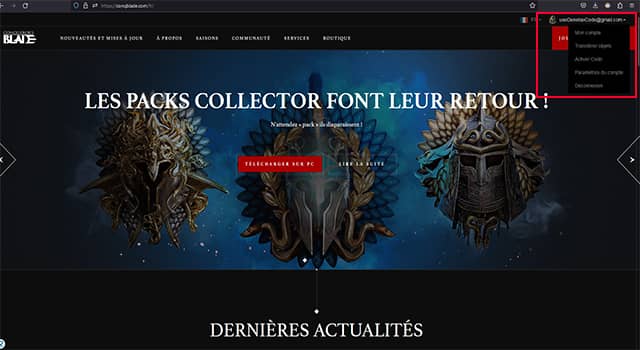
First of all, the very first thing you will need to do is retrieve your My.Games ID, which will be required when creating the ticket. To do this, you will need to log in to the website.
Once logged in, click at the top right on your email address or account number, then on My Account.
(Of course, if you have an issue accessing your account, the ID will not be required to create a ticket.)
Steps to create a ticket
Once the ID has been retrieved, go back to the official Conqueror’s Blade website, then to About and Support.
Selecting the section
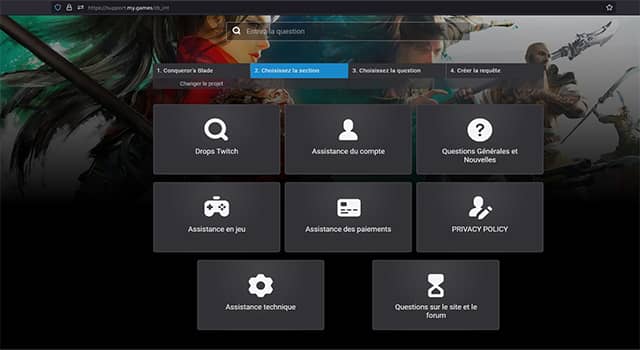
Once on the section selection screen, choose the section that logically best matches your issue. For this example, we will choose the section “In-game Support” and then “I have an in-game issue.”
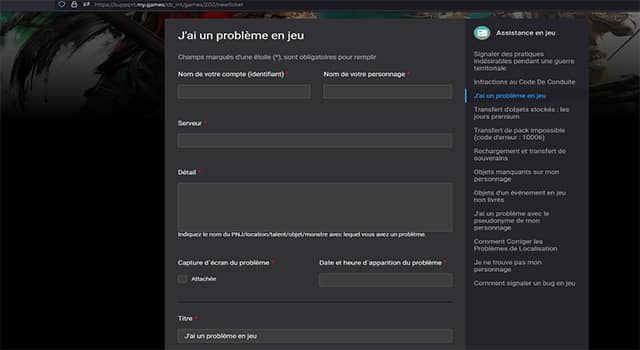
Once this is done, you can click on Contact our experts, which will redirect you to the ticket creation page.
Filling in the fields
Fill in the fields correctly with as much detail as possible (time of the issue, date, affected map, affected unit, etc.). If possible, try to describe your issue in English for a simple reason: it will be easier for the support team to understand your request, as more agents will be able to handle it. Of course, if you do not master this language, then write it in the language you are most comfortable with.
Adding attachments
Try as much as possible, depending on the issue, to add screenshots, videos, or even your machine logs, in order to provide as much information as possible so the issue can be fixed quickly.
*rixmome* DID YOU THINK I WAS A COMPUTER SCIENCE GENIUS OR WHAT?! I DON’T EVEN KNOW WHAT LOGS ARE, BRO
Retrieving logs
It is not necessary to know what logs actually represent. They are simply a set of information that can help developers understand an issue.
To retrieve very simple logs, go to the My.Games launcher, then click on the arrow to the right of Play, select Collect diagnostic data, and finally click Start. This action will generate a file that you can then upload to the ticket.
Using a file hosting service
Be careful: the ticket system does not accept files larger than 50 MB. If your file is bigger than this size, you will need to use a file hosting service and include the link in the ticket. Personally, this situation has already happened to me, and I used MEGA to host the file.
Tracking the ticket
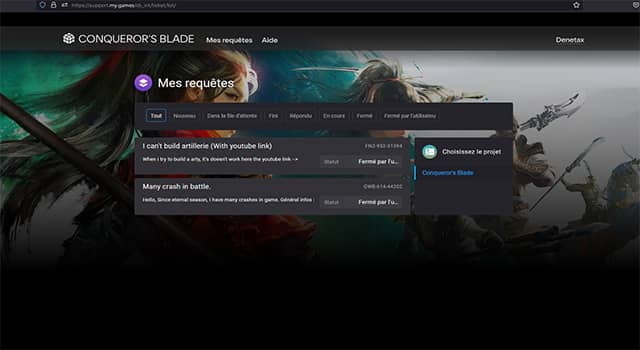
Great, you have created a clean and understandable ticket. You can now wait for a response.
It is possible that the first response is generated by a bot. Don’t take it personally; it helps filter common requests. However, if the response does not suit your issue, you must reply to it. A real person will then be able to intervene, even if it means repeating certain information. Of course, if additional information is requested, try to respond quickly in order to move the case forward and, above all, to prevent the process from being halted.
Keep in mind that the more high-quality tickets there are on a given topic, the higher the priority of the reported issues, and therefore the faster they will be fixed.That’s already the end of this article, I hope you enjoyed it. Don’t forget to leave a thumbs up if you liked it, and if you want to follow the channel, make sure to subscribe!
I would like to remind you that you can use the code
S28B022
to gain access to in-game benefits for new or returning veteran players
And if you would like to see the full list of active codes, you can visit the
gift codes page.